
Reading habits · Ages 2–3, 4–5, 6–8
How to Limit YouTube for Kids Without the Daily Battle
The fight over YouTube is usually about how the watching ends, not how long it lasts. Count videos instead of minutes, turn autoplay off, swap warnings for a routine, and choose things that finish by themselves.
Published 7 October 2026 · 9 min read
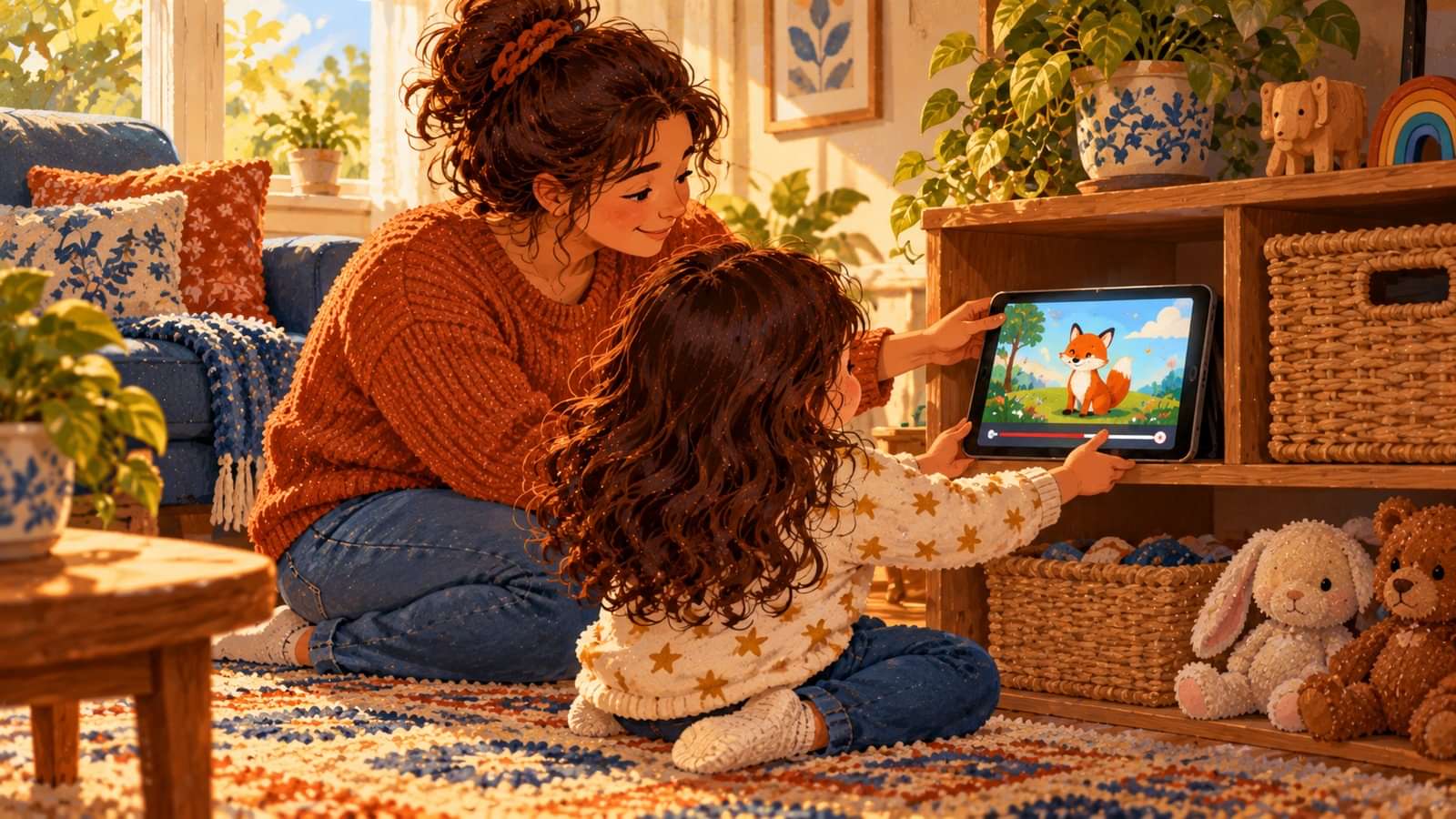
To limit YouTube without a fight every day, change how the watching ends, not just how long it lasts. Agree on a number of videos before the screen goes on, turn autoplay off so each video stops by itself, make the end part of a routine rather than a surprise, and swap some of the watching for something with a real ending. Research with young children points the same way: stopping went better at natural endings and inside routines, and worse when a parent ended it or when autoplay kept going. Screen time transitions study · Autoplay study
Settings help, and we cover the useful ones below. But a timer on its own mostly decides when the argument happens.
Why turning off YouTube causes a meltdown
YouTube is built so that nothing ever ends. One video finishes, the next is already counting down, and the sidebar offers ten more. So the end of watching is almost never the end of a video. It is a person, or a timer, taking it away in the middle of something.
Two University of Washington studies looked at this directly:
- In a diary study of 28 families with children aged 1 to 5, most screen-time endings went fine: 59 percent drew a neutral reaction, 19 percent a positive one and 22 percent a negative one. Transitions went better when they were part of a routine or came at a natural stopping point, such as a video ending. Endings brought about by technology went better than endings a parent imposed. Screen time transitions study
- In a three-week study in 24 homes, preschoolers used a video player that, in one version, automatically played more after the videos they had planned to watch. That version made children less likely to stop by themselves, made them watch longer, and led parents to step in more. Locking children out once time was up did not reduce viewing time or how often parents had to intervene. Autoplay study
The American Academy of Pediatrics now asks platforms to turn autoplay off by default for children and to cut back on designs that prolong engagement. AAP 2026 guidance Until they do, you can make the end predictable yourself.
Count videos, not minutes
Minutes are invisible to a young child, and a 20-minute limit almost always lands in the middle of a video. A number of videos ends at a natural stopping point every time.
“Two videos today. You pick them, and when the second one finishes, the tablet goes on the shelf.”
This is an illustrative script; use your own words. Letting your child choose the videos gives them a real say in the plan, so the ending is one they agreed to rather than one that happens to them.
If you also use a timer, set it a little longer than the agreed videos. Then it is a backstop that rarely fires, not the thing that interrupts.
Turn autoplay off so the video ends by itself
Autoplay is the setting that matters most, because it removes the natural ending that makes stopping easier. These are the controls worth setting once:
- Disable autoplay. Turn on Disable autoplay for your child's profile; while it is on, your child cannot turn autoplay back on. In the main YouTube app, a linked parent account finds it under Settings, then Family Center. YouTube Kids parental controls
- Approve content yourself. This YouTube Kids content level limits your child to the videos, channels and collections you have picked, and search is off. The other levels are Preschool, Younger and Older. YouTube Kids parental controls
- Set Timer. YouTube Kids shows a Time's up! message and locks the app when the timer runs out. YouTube Kids timer
- A device limit. Google Family Link sets daily limits and app time limits on Android phones and Chromebooks. On an iPhone or iPad, Screen Time lets you set time allowances for categories such as entertainment. Family Link · Apple Screen Time
Skip the two-minute warning. Use a routine instead
Many parents give a countdown before screen time ends. In the University of Washington diary study, it did not help: children who got a two-minute warning were more upset when the screen went away, not less. Screen time transitions study That is one study of young children, so if warnings work in your house, keep them. If they don't, try a routine instead.
- Same time, same next step. “After our videos, we feed the cat.” When the next thing is always the same, the end of the screen is just the start of that.
- The device has a home. The tablet goes back to the same shelf or charger every time, so putting it away is part of the routine, not a punishment.
- Let the last video finish. With autoplay off and a number agreed, the video ends the session on its own. You don't have to.
Our simple bedtime routine shows how a short, repeatable sequence can carry a child from one step to the next.
When your child asks for one more video
They will, at least for a while. Acknowledge it, repeat the plan, and point to tomorrow:
“You'd like another one. We've had our two today. Shall we choose tomorrow's first video now?”
Use the same words each time instead of a new explanation, which turns the end into a negotiation. If you decide to allow an extra one, say so clearly and say what happens after it. The same approach works at the end of storytime; our guide to when your child asks for one more story has more phrases.
Swap some videos for a story that ends
Counting videos and turning autoplay off help, but YouTube is still a feed: there is always another video waiting, and the end is still yours to enforce. The easiest stop of all is content that ends by itself, so it helps to swap some of the watching for something that does.
A story does. It has a beginning, a middle and a last page, and a child can feel it coming. That is why we made the Storyboat story library the way it is. Each story unfolds one illustration and one sentence at a time, read by a narrator with the words lighting up, or by you in read mode. It ends on a The End page, and the next story never starts by itself. Most run about 4 to 7 minutes of narration. There are no third-party ads, no comments, and nothing uploaded by the public; every story is written for the library and shows a suggested age range. In The Dream Train, a badger spends the night delivering dreams until the last parcel turns out to be his, and then the story is over.
Storyboat has no parental timer of its own, and mostly it does not need one: the story ends, and the device limits above still work as a backstop.
For more options, including free and screen-free ones, see our comparison of YouTube alternatives for kids.
Frequently asked questions
How much YouTube should a child watch a day?
There is no YouTube-specific number. The World Health Organization advises no sedentary screen time for babies and 1-year-olds, and no more than one hour a day for children aged 2 to 4, with less being better. The American Academy of Pediatrics no longer gives a daily number in its 2026 guidance; it focuses on what children watch, how apps are designed, and a family media plan. WHO guidelines · AAP 2026 guidance
Why does my child have a tantrum when YouTube is turned off?
Usually because the video did not end; someone ended it. In a University of Washington diary study of families with children aged 1 to 5, transitions went better when they were part of a routine or came at a natural stopping point, and worse when a parent ended screen time. Autoplay makes this harder, because there is never a natural stopping point. Screen time transitions study
How do I set a time limit on YouTube Kids?
In the YouTube Kids app, tap the lock in the corner, solve the math problem or enter your passcode, open Settings and choose Set Timer. Pick a time with the slider and tap Start Timer. When the time is up your child sees a Time's up message and the app locks. YouTube Kids timer
Should I ban YouTube altogether?
You can, but you do not have to. Approved content only, with autoplay off, takes away most of what makes YouTube hard to stop. Whatever you choose, the biggest difference comes from deciding the end before the watching starts.
What can kids watch instead of YouTube?
Something that ends by itself, instead of a feed that never does. Storyboat stories are illustrated and narrated, run about 4 to 7 minutes, and finish on a The End page instead of starting another, so the screen goes off when the story does. There are no third-party ads and nothing uploaded by the public. For more options, see our YouTube alternatives for kids.
References
- Hiniker, A., Suh, H., Cao, S., & Kientz, J. A. (2016). Screen Time Tantrums: How Families Manage Screen Media Experiences for Toddlers and Preschoolers. Proceedings of the 2016 CHI Conference on Human Factors in Computing Systems, 648–660. Consulted via the University of Washington news release on two-minute warnings and the authors' lab summary, October 2026; full paper not reviewed.
- Hiniker, A., Heung, S. S., Hong, S. R., & Kientz, J. A. (2018). Coco's Videos: An Empirical Investigation of Video-Player Design Features and Children's Media Use. Proceedings of the 2018 CHI Conference on Human Factors in Computing Systems. Abstract and University of Washington news release on video apps for children consulted October 2026; full paper not reviewed.
- American Academy of Pediatrics. Creating a Child-Friendly Digital World: AAP Releases New Media Recommendations. HealthyChildren.org, January 20, 2026, summarizing the policy statement Digital Ecosystems, Children, and Adolescents (Pediatrics, 2026). Summary page consulted October 2026.
- World Health Organization. To grow up healthy, children need to sit less and play more. April 24, 2019. Guidelines on physical activity, sedentary behaviour and sleep for children under 5. Consulted October 2026.
- YouTube. Parental controls for YouTube Kids profiles. YouTube for Families Help. Consulted October 2026.
- YouTube. Limit screen time on YouTube Kids. YouTube for Families Help. Consulted October 2026.
- Google. Manage your child's screen time. Google for Families Help. Consulted October 2026.
- Apple. Use Screen Time to manage your child's iPhone or iPad. Apple Support. Consulted October 2026.